Safari


 Arc Browser


Quick Switch
Hold ⌥ Tab to step through what's open without leaving the keyboard.
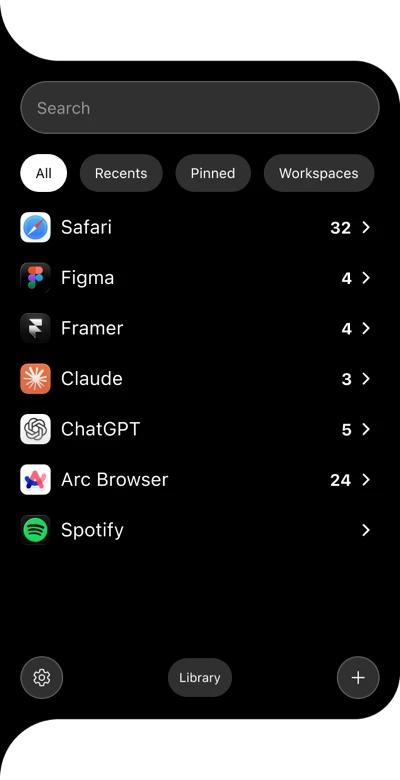
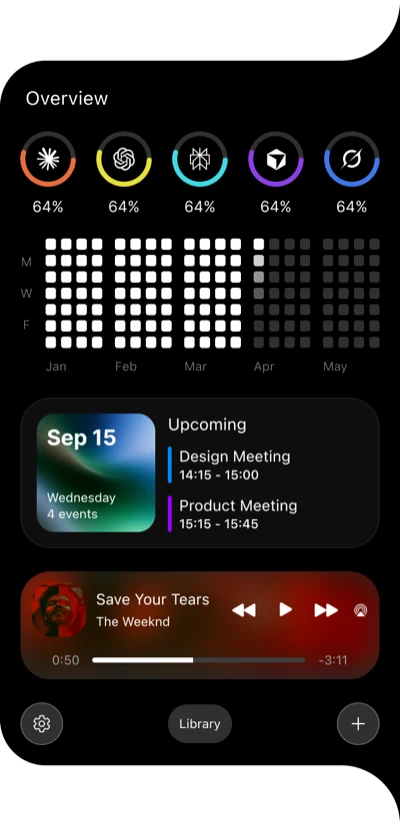
Swivora lives at the edges of your screen. Slide left for every app, window and browser tab. Slide right for your day: AI usage, activity, calendar and music.

 Fri Nov 13 9:41 AM





Everything is built to appear instantly and get out of the way just as fast.
Hold ⌥ Tab to step through what's open without leaving the keyboard.
Rest the pointer at an edge and the panel opens. Move away and it closes by itself.
After a restart, Swivora offers to reopen what you had open before.
A full window for your workspaces, pinned items, recents, activity and widgets.
Record your own shortcut for each panel. Sensible defaults work from the first launch.
A native app with fluid motion, Reduce Motion support, and no Dock icon in your way.
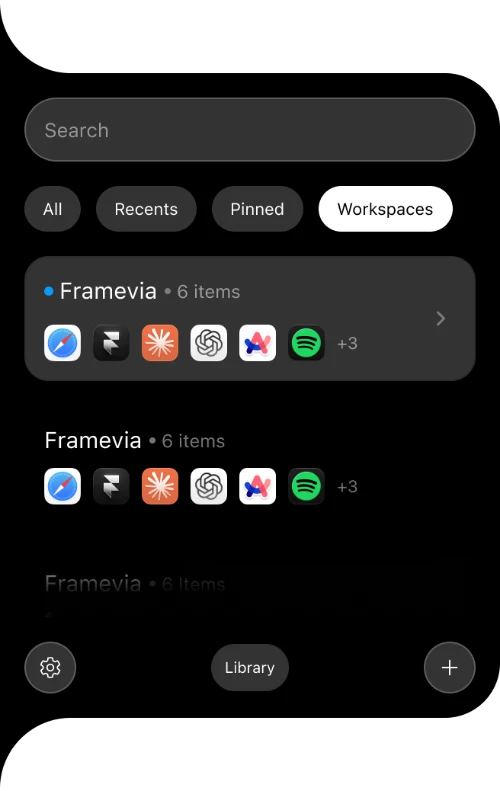
Push the pointer to the left edge, or press your shortcut. Swivora unfolds with everything that's open, and one click takes you there.
Click an app and it expands in place. Safari shows its tabs with their sites, Figma its files, and the other apps tuck into a strip of icons so you can hop between them.
Pin an app, a window or a single tab and it stays in Pinned until you say otherwise. Recents remembers what you used today and yesterday.
A workspace is a named set of apps, windows and tabs: everything for one project, client or class. Build one from what's open now, or pick the items yourself.
The right panel is a stack of widgets you arrange yourself. Glance, act, and let it tuck away again.
Each ring is one assistant, filled by how much of its limit you've used. Rest the pointer on a ring and its card shows the session and the week in detail.
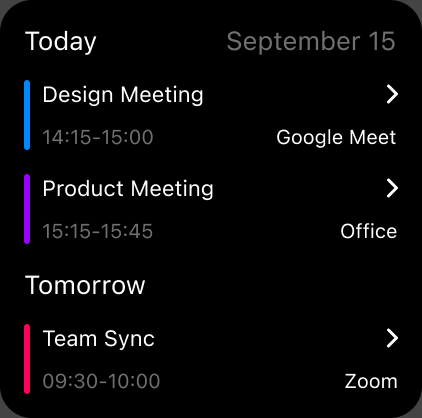
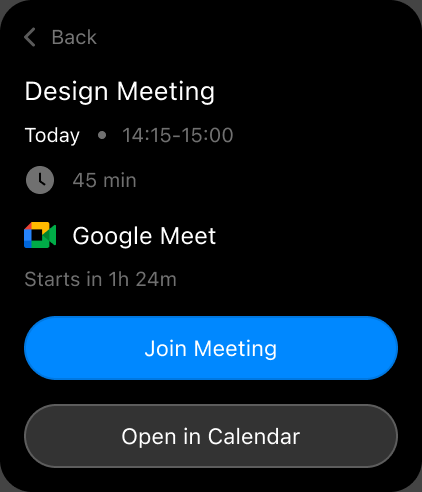
The widget shows today's date and your next events. Click it for the agenda, and click an event for its time, place and meeting link.
Every day you work fills in a square, like a contribution graph for your Mac. Pick a day to see what it was made of.
Press play and the widget picks up the song: artwork, title, artist and progress. Skip to the next track and it changes with it, colours included.
Buy Swivora once and use it for as long as you like.
One-time purchaseEvery feature, yours to keep
What's included:
Secure checkout by Stripe. Requires macOS 13 or later. A Windows version is coming soon.
An app that adds a panel to each side of your screen, available for macOS now, with a Windows version on the way. The left one lists every open app, window and browser tab so you can switch in one click. The right one shows widgets: AI usage, activity, calendar and music.
Press the panel's shortcut, or rest the pointer at the left or right edge of the screen. You can change the shortcuts and the edge behaviour in Settings.
No. Swivora is a one-time purchase of $12.99.
If Swivora doesn't work for you or something went wrong with your purchase, write to us and we'll look at it case by case. See the Terms of service.
Not at the moment. You can download the app first, and it asks for a license key when it opens.
The key is shown on the page right after checkout, with a download button, and it's also sent to your email. Paste it into Swivora to activate.
A license is active on one Mac at a time. To move it, choose Deactivate This Mac in Settings → License, then activate on the other Mac.
Swivora asks for access as features need it: Accessibility to switch windows, Automation to read browser tabs, and Calendar for the calendar widget. You can review each one in Settings → Apps & Permissions.
Not yet, but it's coming. Swivora is available for Mac today. Leave your email and you'll hear when the Windows version is ready. There's no release date yet.
Any Mac running macOS 13 or later, Apple silicon or Intel.
Swivora checks for updates by itself and offers a new version in the right panel. One click installs it.
Download Swivora and put your screen's edges to work.
Everything open on your Mac. One place to find it.
 Kamran Hasanli